

Do
1
Create or duplicate the profile
On station 03, press Create or duplicate, then New profile. The profile wizard opens
with the campaign’s Video Story and Personalization Canvas already in step 1, locked. On the
right, paste a short brief on how this outreach should feel: tone, formality, whether the
presenter introduces themself, how to address recipients. LatentCast turns it into style
guidance for the personalized parts.Made a profile for a similar outreach before? Pick it in the same list and press
Duplicate. The copy carries every setting over, keeps the story version that profile ran,
takes this campaign’s canvas and name, and is signed off at once. Go straight to your
presenters’ consent.
2
Define how the video changes
Step 2: choose where the background images come from: generated under guidelines you describe
in the chat, generated as a set you pick from, or your own photography.Step 3: pick a package and adjust its switches. This is where you decide which dimensions of
your Personalization Canvas are used and where: the personal opening, an optional context
scene, the closing, and the recipient’s logo and colours. Next to every scene there is a
drop-down box where you toggle each personalization dimension on or off for that scene, so
one scene can use the triggering event while another stays exactly as in the Video Story.Step 4 is the
each recipient lands on: welcome line,
call to action, logo, subtitles, with a live preview of your first recipient’s page.
3
Review and save
Step 5 recaps everything. Saving builds the from your
Personalization Canvas: every colleague named as a presenter joins the cast.
4
Sign it off
Press Sign off on the Personalization Profile. That freezes the rules. With
Invite the cast now ticked, as it is by default, each presenter receives a casting request.
5
Get your presenters' consent
Station 04, Cast consent, follows them. Anyone not invited yet, such as the presenters of a
duplicated profile: press Open cast and invite them. Each presenter opens
Proxies ▸ Casting in their own account, binds their avatar and voice, and presses
Grant consent. The station shows who has consented and whom you are waiting for, since
when. One consent is enough to start: the recipients of a presenter who consented can be
produced while you wait for the others. Setting up an avatar and a voice is a one-time task
with its own guide.
6
Preview one video
Station 05 opens with Test with one recipient. Press Open test: the profile page arrives
with a recipient already picked, the first whose presenter has consented. Pick another if you
like, and press Start production. Nine steps run,
and an activity feed says what was decided and why. Then the
plays that recipient’s video.
Is everything it says about them true? Does it sound like a person wrote it? Would you send
it? If not, edit the rules or fix the Personalization Canvas and preview again. If yes, you
are ready to produce at scale.
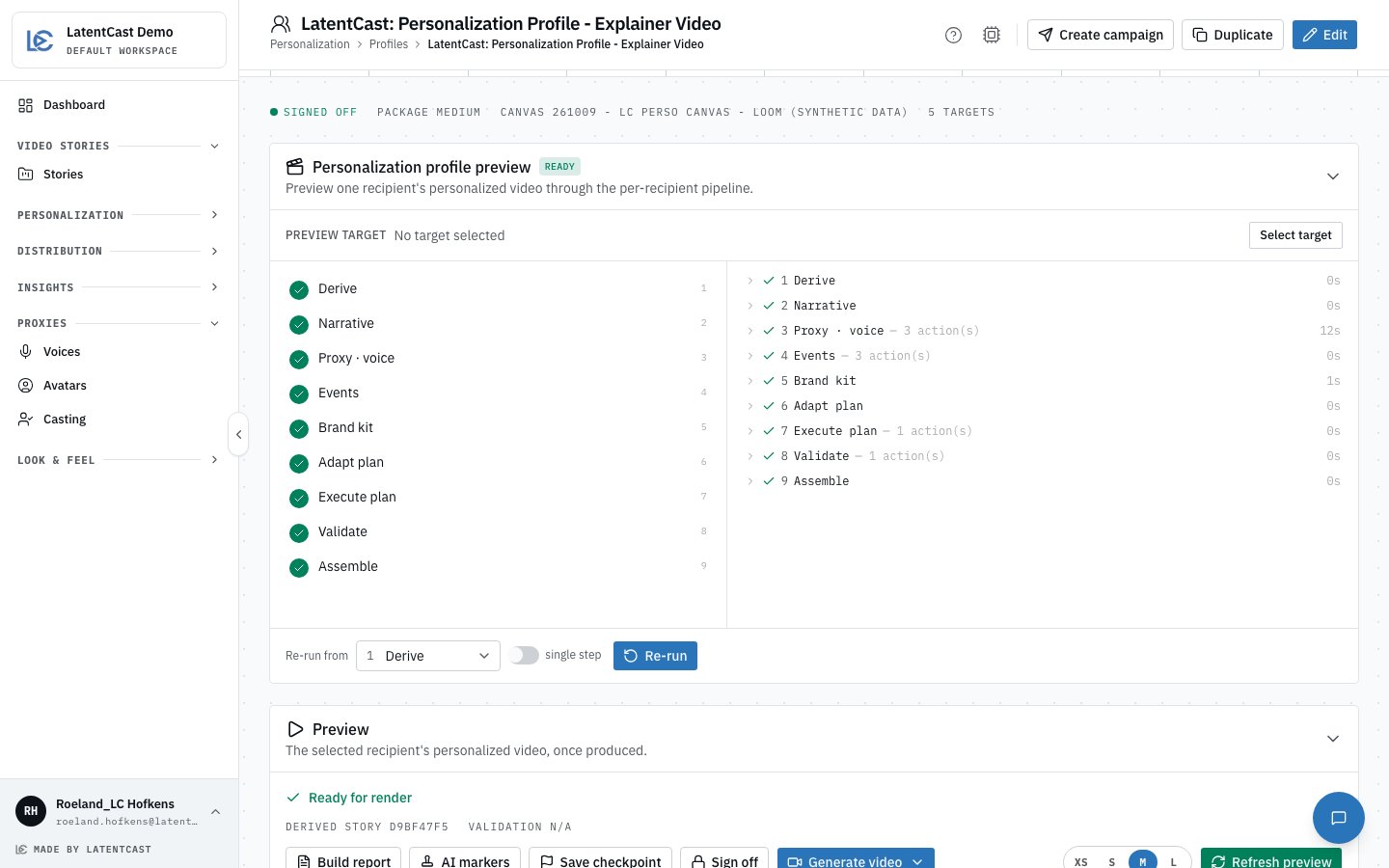
The Personalization Profile page: the recipient picker and Start production on top, the previewed recipient's video below.
Watch out
Finetuning here changes one recipient’s video only. The Tuning Chat on a previewed recipient
edits that recipient’s video, never the base Video Story and never anyone else’s.