

- From content. You give LatentCast a brochure, a slide deck or a report and a short brief. LatentCast writes the script and builds the scenes from that.
- From your script. You pick the Custom story type and give LatentCast your own script. The video follows your script word for word. LatentCast builds the scenes around it, but the words are yours.
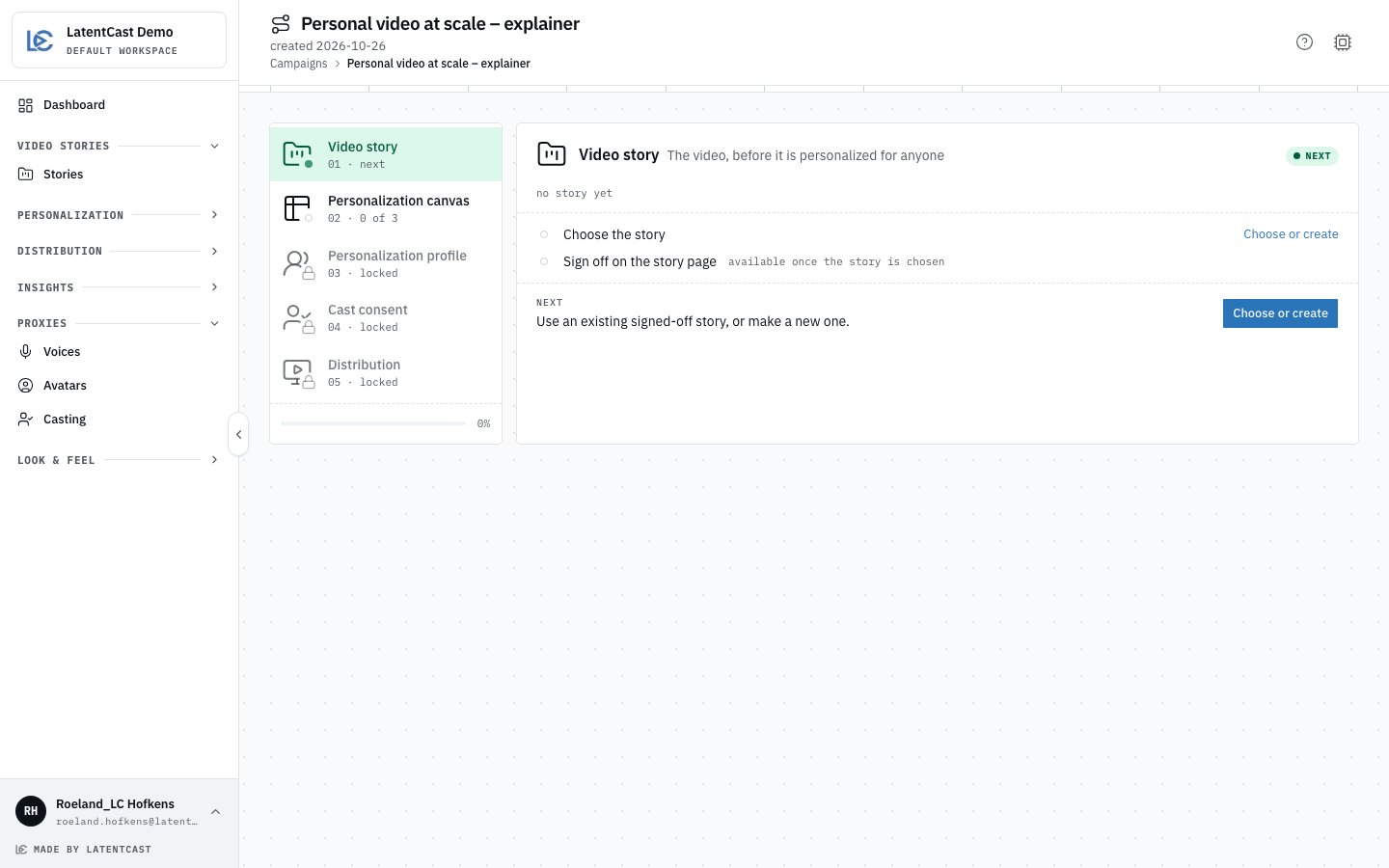
A new campaign's guide: station 01 open, Choose or create as the next step, the other stations still to come.
Do
1
Start the campaign
On the Dashboard, press New campaign, give it a name and press Create. The guide
opens on station 01, Video story. Already have a signed-off Video Story? Press
Choose or create, pick it, press Use story, and go on to
Define who receives it.
2
Start a new Video Story
Press Choose or create, then New story. The opens with four steps.
3
Write the brief
Step 1: pick the kind of story (a product introduction, a company introduction, an event, an
offer, or Custom), the audience, the tone of voice and a target length. Then write one or
two sentences on what this video should achieve. That short brief steers everything that
follows. Pick Custom if you will provide your own script in the next step.Pick the language here too. The story is written and spoken in one language, and it cannot be
changed once the script exists. Dutch and French add a register: whether the video says u or
je, vous or tu.
4
Give it your content, or your script
Step 2, from content: upload a brochure, a slide deck or a report. LatentCast reads it straight
away and checks that it fits your brief. If the content and your brief do not match, it says so
and stops rather than inventing a story. LatentCast then writes the script.Step 2, from your script (Custom): provide the script itself. LatentCast does not rewrite it.
The narration is your text, scene by scene, and the visuals are built to match it.
5
Pick a look and create
Step 3: choose a style and your brand kit. Step 4 is a recap. Create the Video Story, and
production starts.
6
Wait, then watch
The story page shows production moving through its steps. A few minutes later the preview
plays: scenes, narration, backgrounds and on-screen text. Watch it the way a recipient would.
The presenter is a still image at this point. Their is static
until you render it, on purpose, in a later step.
7
Finetune it
Open the with the round blue button at the bottom
right, or Tuning Chat in the header. Say what you want changed: “make the opening shorter”,
“swap the background in scene 2”, “add our logo”. It makes the change, shows it in the preview,
and gives you an undo. You can also edit the scenes directly. Chat or edit, until you like it.What you can change, scene by scene:
- Narrative: the text that is spoken and shown on screen.
- Avatar: which presenter appears, and their size and position in the frame.
- Voice: which voice speaks the narrative.
- Events: the titles, highlighted phrases, figures and logos that appear on screen, timed to the words.
- Backgrounds: the image or video behind the presenter.
8
Render the avatars
Once you are done finetuning, press Generate video and choose Proxy videos. This
animates the presenter, scene by scene, lip-synced to the narrative, and the preview shows
them moving. The avatars are always rendered last, because they take a lot of time and
resources. Render them once the words are final, not before, or you render them twice.
9
Sign it off
When you would happily show it to a recipient, press Sign off in the preview header and give
the version a short label. The Video Story is now frozen as Version 1 and available to the next
stage. That is what means everywhere in LatentCast.
Back to campaign, under the page header, returns you to the guide.
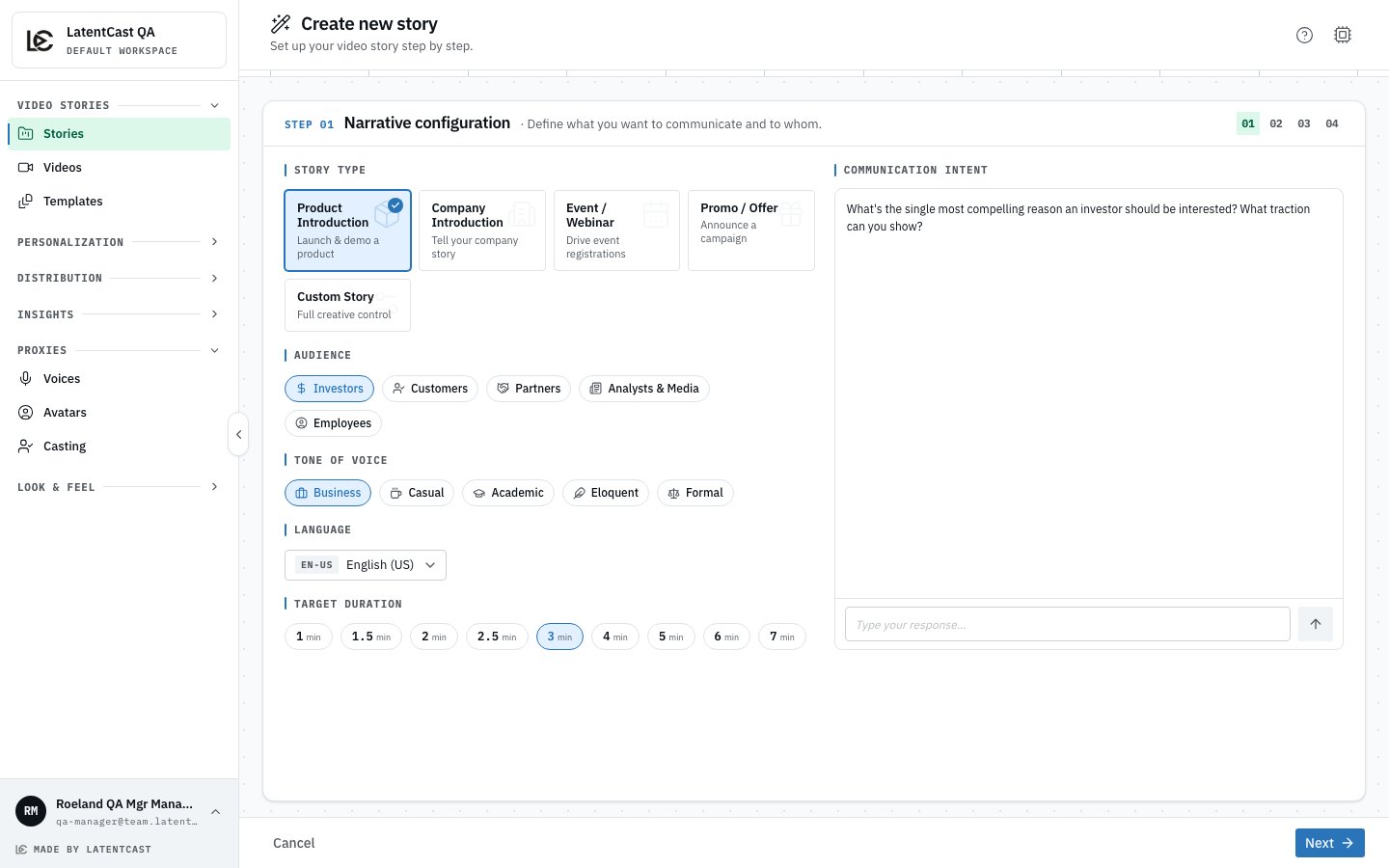
Step 1 of the wizard: what kind of story, for whom, in what tone, how long, and what it should achieve.
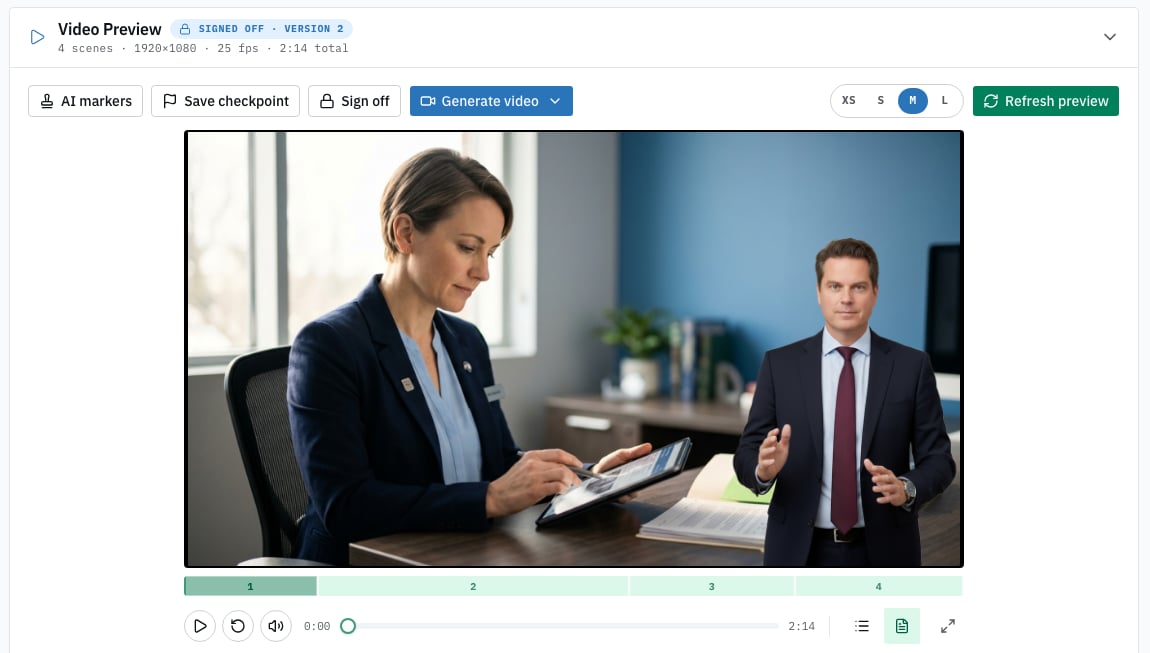
The story page after production: the preview, and Sign off in the row above it. This one is already frozen as Version 2.