

Scenes
A story is divided into , usually a handful, depending on length. Each has its own script and its own visuals. Scenes carry a role: one opens the story, one closes it, and the rest carry the topics in between. The opening stays first and the closing stays last, whatever else you reorder.Narration
The is a scene’s script, and the audio is that script spoken by the presenter’s voice. The system writes to a length that fits the duration you asked for. Narration is the part with consequences. Change the words, and the audio is re-spoken, the on-screen text is re-timed to the new words, and the scene’s length moves. That is handled for you, but it is why a wording tweak takes longer than moving a logo.The presenter
Your colleague on screen: their , speaking with their . A scene shows them one of two ways.- As a still image. A single frame of the presenter over the background. This is how a story is built by default, because it is fast and cheap while you are shaping the content.
- As a moving video. The presenter animated and lip-synced to the narration. This is the expensive step, so you take it once you are happy with everything else.
Backgrounds
Behind the presenter sits a : a photograph, a generated image, or a short video clip, chosen to match what the scene is about. Backgrounds can be layered, can move slowly across a still image, and can fade from one to the next. A flow is a special case: a sequence of backgrounds that walks through something step by step. When your material describes a process, the system lays it out as a flow so the progression reads on screen.On-screen events
are the graphics that appear at a chosen moment, timed to land on the words they belong to. There are four:The preview
The preview plays all of it together. It is where you do your reviewing, and it is drawn live from the story, so it reflects every change within seconds of you making it.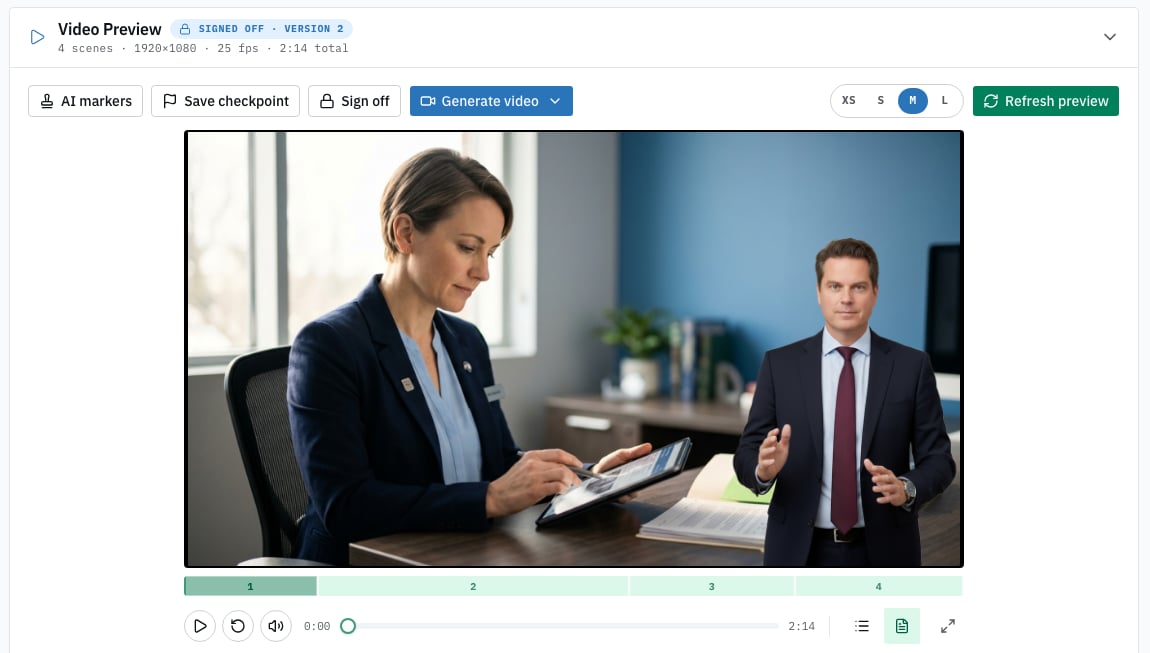
The preview, with the scene strip beneath it and the scene-by-scene detail below that.
Next
Tuning by chat
Change any of this by asking for it.
Reviewing and rendering
Watch it properly, then make the video.