

What the recipient sees
- A welcome line addressed to them.
- Their video, playing on a proper player that works on a phone.
- Your logo and colours, or theirs, depending on how you configured it.
- Subtitles, if you enabled them.
- A call to action: an email to their presenter or your team, or a link to a page of yours.
- A quiet five-star rating offered when the video ends.
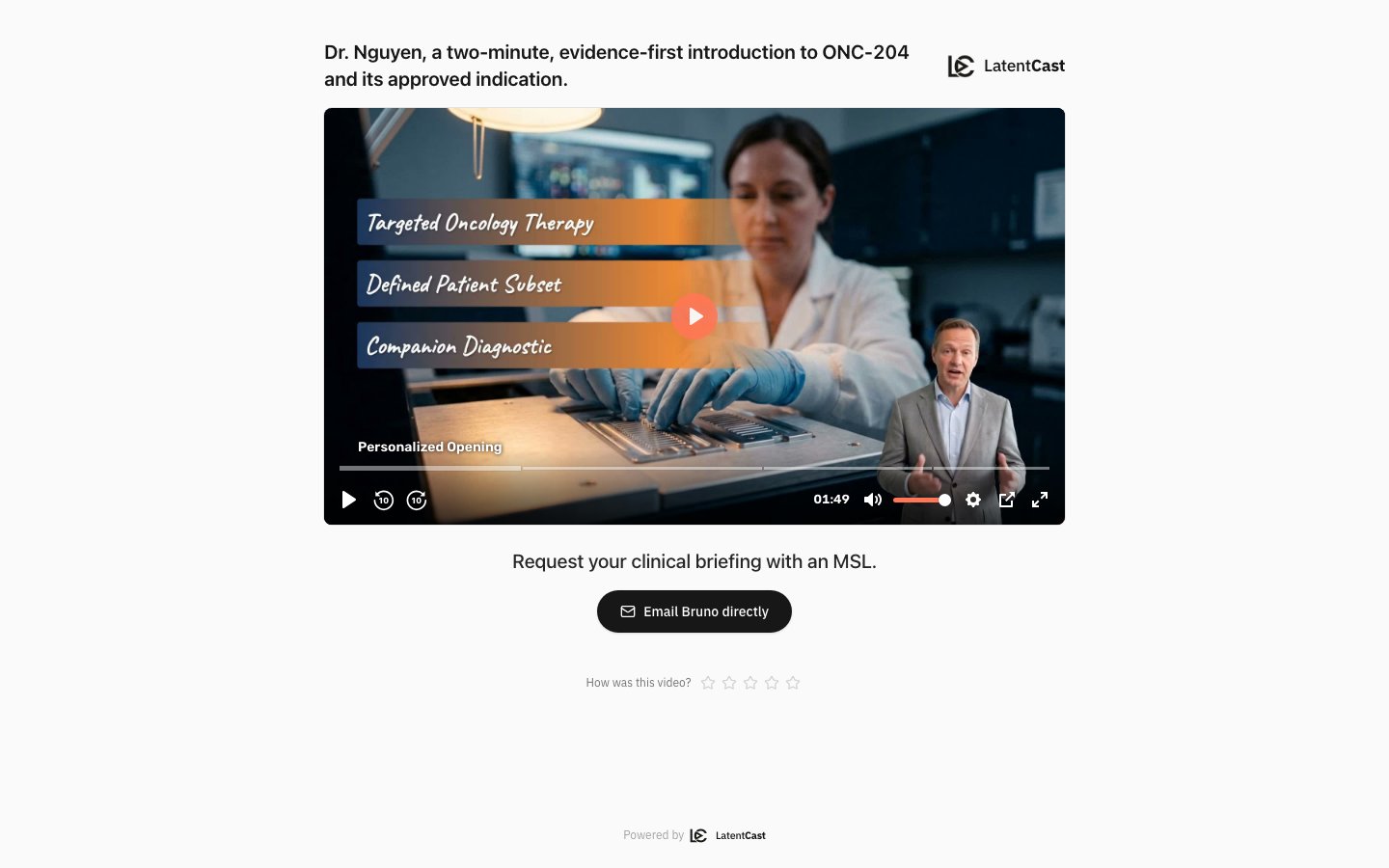
A recipient's page: presented by the colleague who owns the relationship, with a call to action that reaches them.
Configuring it
The Viewing page step of the profile wizard holds the settings: the welcome line, the call to action, subtitles, and the logo. The preview beside them is the page of the first recipient on your list, built the way their real page will be, with a still where the video plays. It updates as you change a setting. The logo is a choice with three outcomes. You can show the recipient’s own logo, taken from your list, which is the strongest personal touch when you have good logo data. You can show your organization’s logo. And you can ask for the recipient’s logo with a fallback to yours, which is the sensible default when your list is uneven. If you change these settings after pages have been made, existing pages keep what they were built with. Use the Refresh page action on a page to re-resolve its welcome, call to action, fonts and logo. The link never changes.The call to action
The call to action sits under the video. Its message comes from the call-to-action column of your list. What it does is set once, on the profile, for every recipient. Choose what it does.- Email opens the recipient’s mail program with a short note, ready to send. It goes to the presenter on their row, or to one fixed address you enter, such as a shared sales inbox.
- Link opens a page of yours in a new tab: a booking page, a landing page, a form.
http:// works but is flagged; use https:// where you can.
You cannot move on with an action that would never work. An email address that is not a real
address, or a link that is not a full web address, holds the wizard at this step until it is
corrected.
{rep} becomes each recipient’s presenter’s first name, so Sarah’s recipients see
“Email Sarah directly”. Keep it, or write your own and put {rep} wherever the name belongs. Clear
the field and the ready-made label comes back. A recipient whose row has no presenter name sees the
label without one, such as “Book a meeting”. If your organization makes stories in more than one
language, Add language adds a label in another language, up to three.
Button or link. The action shows as a button, or as an underlined text link for a quieter page.
Attribution on the link. Under Configure, choose which details are added to the link, so the
page you send people to knows where the visit came from. The list is fixed: pick from it or leave it
empty.
The
utm_ details are read automatically by analytics tools such as Google Analytics and HubSpot.
The lc_ details let a booking page or a form recognise the person and fill in their name. If the
address you enter already carries one of these details, yours is kept. A recipient produced straight
from the profile, outside a campaign, has no campaign or batch to carry.
Managing every page
Distribution ▸ Viewing pages lists every page in your organization, whatever made it: minted by a batch run, created by hand from a rendered video, or carried over from older campaigns whose links still work. Filter it by Campaign and Batch — the batch choices follow the campaign — and sort by Most CTA clicks to see which pages people acted on. Each page’s detail shows the link with a copy button, an active switch, how many times it has been viewed and its call to action clicked, where it came from, and the rating if one has been left. Pages outside a batch can be marked as sent too. A page made from a profile test run or straight from a rendered story belongs to no batch. When you send one to someone yourself, Mark as sent on the page records it, with an optional note; Undo mark as sent clears it. Pages in a batch are marked with their batch, on Campaign details. Deactivating a page takes it offline without deleting it: the link stops working and can be switched back on later, same link. Use it when a video needs correcting after you have already sent the message. Each page also says which video it serves, and there are two behaviours:Choose deliberately when a message has already gone out. Evergreen is right while you are still
improving a story that people are only just receiving. Pinned is right when someone was sent
something specific and the link should keep showing exactly that.
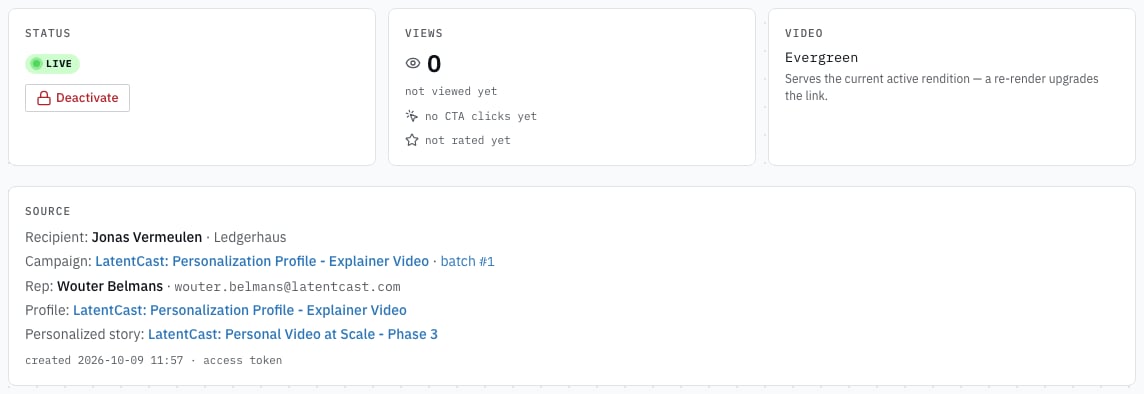
A page's detail: whether it is live, how often it has been viewed, which video it serves, and who it was made for.
How links behave when you share them
- Email shows your preview image and the link normally. Use the small animated image; some clients refuse the larger one.
- LinkedIn direct messages do not unfurl links at all. Paste the preview image into the message yourself and put the link beneath it. In-feed posts unfurl normally.
- WhatsApp unfurls inconsistently, depending on the client and the moment.
Opening a page yourself
You will often open a recipient’s page yourself: to check a video before sending it, or to show it to a colleague. When you do that while signed in to LatentCast, the page shows Team view · not counted. The visit is recorded, but it never counts: not as a view, not as a click, and a rating you give there never replaces the recipient’s.Preview pages while signed in. A colleague who opens a page on a phone or in a private window,
without being signed in, looks like a recipient and is counted. If you do not see the Team view
label, your visit counted.
What is measured
Every visit to a page is recorded: when it was opened, how much of the video played, whether the call to action was clicked, and the rating. The Insights ▸ Engagement page adds it up per campaign, batch and presenter. See Engagement. A click on an email button means the recipient’s mail program opened, not that the mail was sent. What happens after a click on a link shows up in your own analytics, through the details added to the link.Next
The manifest and sending
Where the page links come from.
Engagement
How your recipients engaged, per campaign, batch and presenter.