> ## Documentation Index
> Fetch the complete documentation index at: https://www.latentcast.com/docs/llms.txt
> Use this file to discover all available pages before exploring further.
# Define who receives it
> Upload your recipient list and sales intelligence, check it, and sign off the Personalization Canvas.
**Where:** Personalization ▸ Canvases
The Personalization Canvas is your recipient list: one row per
recipient, one column per thing that may change in their video. It is
the only place LatentCast learns anything about a recipient, so what is in a cell is what gets said.
You do not have to invent the columns. **Start from the Personalization Canvas template.** It has
every column already in place, with an explanation of what each one is for and what to put in it.
Fill in what you know, leave the rest empty, and upload.
## What a Personalization Canvas can personalize
The columns fall into a handful of dimensions. Each one is a different way the video adapts to the
recipient:
* **Name and company.** Who the recipient is and where they work, so the video addresses them
directly.
* **Narrative, the deep personalization.** Four kinds of sales intelligence that shape what is
said: a **triggering event** (why now), the **relationship context** (how you know them),
their **strategic priorities** (what they are working towards) and **relevance signals** (why
your offer fits them).
* **Logo and images.** Visuals that refer to the recipient, such as their company logo or
pictures of their business, shown on screen.
* **Language.** The language the recipient hears the video in.
* **Viewing Page messages.** The text on the personal page where the recipient watches their video.
* **The presenter.** The colleague who appears on screen for this recipient, usually the sales
rep who owns them.
You do not have to fill every dimension. Which of them are used, and how, is decided in the next
stage.
## Do
Take the Personalization Canvas template. One row per recipient. Fill in who they are (name,
email, role, company, industry, country), who presents (their name and email), and your sales
intelligence for the narrative: triggering event, relationship context, strategic priorities,
relevance signals. Add their language, logo and images, and Viewing Page messages if you have
them. Leave a cell empty when you do not know. Never guess.
On **Canvases**, press **New Canvas** and drop the file in. It becomes a Personalization
Canvas. LatentCast reads it and shows a report: how many recipients it found, which sheets it
read, and any warnings. The chat panel on the right answers questions about the data: what is
missing, what looks thin, what looks odd.
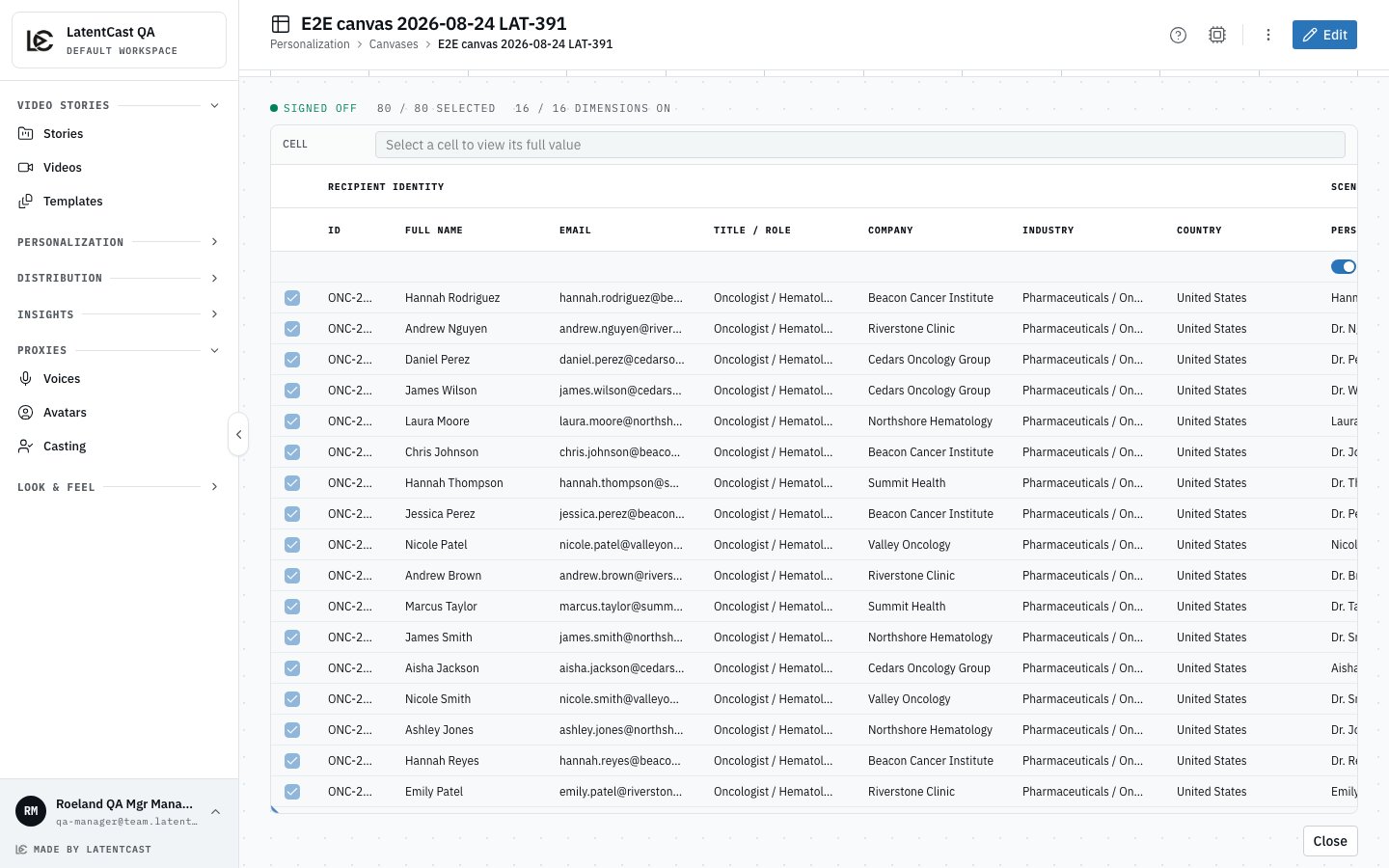
The list opens as a grid. Read it the way the video will: every cell about a recipient becomes
a sentence spoken to that recipient. Validate what was imported and fix what is wrong or out of
date. Your own Excel file is not touched.
Press **Sign-off** in the last step of the canvas wizard. That freezes the Personalization
Canvas, and only a signed-off canvas can be used in the next stage.
 ## Watch out
**Whatever is in a cell will be said to a real recipient as fact.** A stale triggering event or a
wrong job title becomes a confident, personal statement in their video. This grid is where accuracy
is won or lost.
**An empty cell is skipped, never filled in.** If a recipient has no triggering event, their video
simply does not mention one. Every column is imported; which ones are used, and how, is decided in
the next stage by the Personalization Profile.
**The colleagues named as presenters become the cast.** Use the email address each of them logs in to
LatentCast with. They will be asked to consent before their face and voice are used.
Next: [Set personalization rules](/docs/guides/first-campaign/set-the-rules) · Back:
[Make the Video Story](/docs/guides/first-campaign/make-the-story)
## Watch out
**Whatever is in a cell will be said to a real recipient as fact.** A stale triggering event or a
wrong job title becomes a confident, personal statement in their video. This grid is where accuracy
is won or lost.
**An empty cell is skipped, never filled in.** If a recipient has no triggering event, their video
simply does not mention one. Every column is imported; which ones are used, and how, is decided in
the next stage by the Personalization Profile.
**The colleagues named as presenters become the cast.** Use the email address each of them logs in to
LatentCast with. They will be asked to consent before their face and voice are used.
Next: [Set personalization rules](/docs/guides/first-campaign/set-the-rules) · Back:
[Make the Video Story](/docs/guides/first-campaign/make-the-story)