> ## Documentation Index
> Fetch the complete documentation index at: https://www.latentcast.com/docs/llms.txt
> Use this file to discover all available pages before exploring further.
# Viewing pages
> The page a recipient lands on: what they see, how you configure it, how links behave in messengers, and how to manage every page in one place.
**Where:** Distribution ▸ Viewing pages, and the **Viewing page** step of a profile
A viewing page is where a recipient actually watches. Every person in
a batch gets their own, at their own link. It is the last thing you make and the first thing they
see.
## What the recipient sees
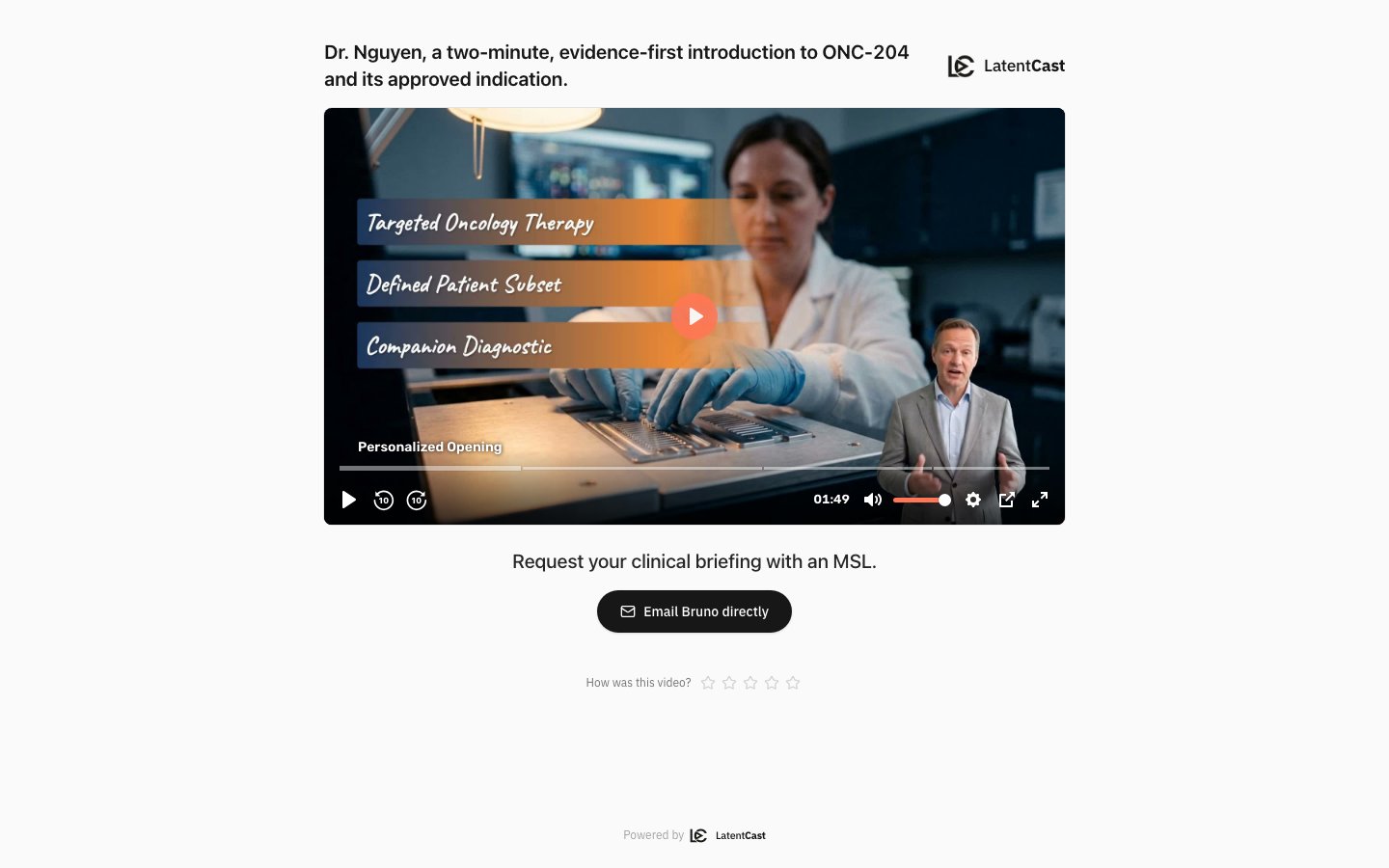
* A **welcome line** addressed to them.
* **Their video**, playing on a proper player that works on a phone.
* Your **logo and colours**, or theirs, depending on how you configured it.
* **Subtitles**, if you enabled them.
* A **call to action**: an email to their presenter or your team, or a link to a page of yours.
* A quiet **five-star rating** offered when the video ends.
 ## Configuring it
The **Viewing page** step of the [profile wizard](/docs/guides/personalization/building-a-profile) holds
the settings: the welcome line, the call to action, subtitles, and the logo. The preview beside them
is the page of the first recipient on your list, built the way their real page will be, with a still
where the video plays. It updates as you change a setting.
**The logo is a choice with three outcomes.** You can show the recipient's own logo, taken from your
list, which is the strongest personal touch when you have good logo data. You can show your
organization's logo. And you can ask for the recipient's logo with a fallback to yours, which is the
sensible default when your list is uneven.
If you change these settings after pages have been made, existing pages keep what they were built
with. Use the **Refresh page** action on a page to re-resolve its welcome, call to action, fonts and
logo. The link never changes.
## The call to action
The call to action sits under the video. Its message comes from the call-to-action column of your
list. What it does is set once, on the profile, for every recipient.
**Choose what it does.**
* **Email** opens the recipient's mail program with a short note, ready to send. It goes to the
presenter on their row, or to one fixed address you enter, such as a shared sales inbox.
* **Link** opens a page of yours in a new tab: a booking page, a landing page, a form.
Once you pick an action, a recipient without a message in your list still gets the button.
**Check the link.** When you leave the address field, LatentCast opens the page to check that it
answers, and shows the result under the field. **Test link** checks again. An address that starts
with `http://` works but is flagged; use `https://` where you can.
**You cannot move on with an action that would never work.** An email address that is not a real
address, or a link that is not a full web address, holds the wizard at this step until it is
corrected.
**Label it.** The label field starts with a ready-made label in the story's language: "Email {rep}
directly" for the presenter's email, "Send us an email" for a fixed address, "Book a meeting with
{rep}" for a link. `{rep}` becomes each recipient's presenter's first name, so Sarah's recipients see
"Email Sarah directly". Keep it, or write your own and put `{rep}` wherever the name belongs. Clear
the field and the ready-made label comes back. A recipient whose row has no presenter name sees the
label without one, such as "Book a meeting". If your organization makes stories in more than one
language, **Add language** adds a label in another language, up to three.
**Button or link.** The action shows as a button, or as an underlined text link for a quieter page.
**Attribution on the link.** Under **Configure**, choose which details are added to the link, so the
page you send people to knows where the visit came from. The list is fixed: pick from it or leave it
empty.
| Detail | What it carries | On by default |
| -------------------- | -------------------------------------- | ------------- |
| `utm_source` | Always `latentcast` | Yes |
| `utm_medium` | Always `video` | Yes |
| `utm_campaign` | The campaign the recipient was sent in | Yes |
| `lc_recipient_name` | The recipient's name from your list | Yes |
| `lc_recipient_email` | The recipient's email from your list | Yes |
| `lc_company` | The recipient's company from your list | No |
| `lc_batch` | The batch the recipient was sent in | No |
The `utm_` details are read automatically by analytics tools such as Google Analytics and HubSpot.
The `lc_` details let a booking page or a form recognise the person and fill in their name. If the
address you enter already carries one of these details, yours is kept. A recipient produced straight
from the profile, outside a campaign, has no campaign or batch to carry.
**The recipient's email address travels in the link.** Keep `lc_recipient_email` on only when the
page you link to is your own, or a tool you already trust with your contacts.
## Managing every page
**Distribution ▸ Viewing pages** lists every page in your organization, whatever made it: minted by
a batch run, created by hand from a rendered video, or carried over from older campaigns whose links
still work.
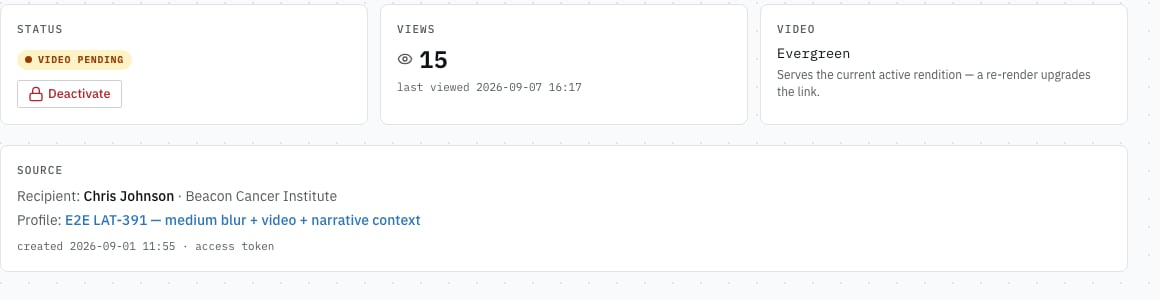
Each page's detail shows the link with a copy button, an **active** switch, how many times it has
been viewed and its call to action clicked, where it came from, and the rating if one has been left.
**Deactivating** a page takes it offline without deleting it: the link stops working and can be
switched back on later, same link. Use it when a video needs correcting after you have already sent
the message.
Each page also says which video it serves, and there are two behaviours:
| Mode | What it means |
| ------------- | ----------------------------------------------------------------------------------- |
| **Evergreen** | The page follows the story's current video. Re-render and everyone's link improves. |
| **Pinned** | The page keeps the exact video it was created with, whatever you render later. |
**Choose deliberately when a message has already gone out.** Evergreen is right while you are still
improving a story that people are only just receiving. Pinned is right when someone was sent
something specific and the link should keep showing exactly that.
## Configuring it
The **Viewing page** step of the [profile wizard](/docs/guides/personalization/building-a-profile) holds
the settings: the welcome line, the call to action, subtitles, and the logo. The preview beside them
is the page of the first recipient on your list, built the way their real page will be, with a still
where the video plays. It updates as you change a setting.
**The logo is a choice with three outcomes.** You can show the recipient's own logo, taken from your
list, which is the strongest personal touch when you have good logo data. You can show your
organization's logo. And you can ask for the recipient's logo with a fallback to yours, which is the
sensible default when your list is uneven.
If you change these settings after pages have been made, existing pages keep what they were built
with. Use the **Refresh page** action on a page to re-resolve its welcome, call to action, fonts and
logo. The link never changes.
## The call to action
The call to action sits under the video. Its message comes from the call-to-action column of your
list. What it does is set once, on the profile, for every recipient.
**Choose what it does.**
* **Email** opens the recipient's mail program with a short note, ready to send. It goes to the
presenter on their row, or to one fixed address you enter, such as a shared sales inbox.
* **Link** opens a page of yours in a new tab: a booking page, a landing page, a form.
Once you pick an action, a recipient without a message in your list still gets the button.
**Check the link.** When you leave the address field, LatentCast opens the page to check that it
answers, and shows the result under the field. **Test link** checks again. An address that starts
with `http://` works but is flagged; use `https://` where you can.
**You cannot move on with an action that would never work.** An email address that is not a real
address, or a link that is not a full web address, holds the wizard at this step until it is
corrected.
**Label it.** The label field starts with a ready-made label in the story's language: "Email {rep}
directly" for the presenter's email, "Send us an email" for a fixed address, "Book a meeting with
{rep}" for a link. `{rep}` becomes each recipient's presenter's first name, so Sarah's recipients see
"Email Sarah directly". Keep it, or write your own and put `{rep}` wherever the name belongs. Clear
the field and the ready-made label comes back. A recipient whose row has no presenter name sees the
label without one, such as "Book a meeting". If your organization makes stories in more than one
language, **Add language** adds a label in another language, up to three.
**Button or link.** The action shows as a button, or as an underlined text link for a quieter page.
**Attribution on the link.** Under **Configure**, choose which details are added to the link, so the
page you send people to knows where the visit came from. The list is fixed: pick from it or leave it
empty.
| Detail | What it carries | On by default |
| -------------------- | -------------------------------------- | ------------- |
| `utm_source` | Always `latentcast` | Yes |
| `utm_medium` | Always `video` | Yes |
| `utm_campaign` | The campaign the recipient was sent in | Yes |
| `lc_recipient_name` | The recipient's name from your list | Yes |
| `lc_recipient_email` | The recipient's email from your list | Yes |
| `lc_company` | The recipient's company from your list | No |
| `lc_batch` | The batch the recipient was sent in | No |
The `utm_` details are read automatically by analytics tools such as Google Analytics and HubSpot.
The `lc_` details let a booking page or a form recognise the person and fill in their name. If the
address you enter already carries one of these details, yours is kept. A recipient produced straight
from the profile, outside a campaign, has no campaign or batch to carry.
**The recipient's email address travels in the link.** Keep `lc_recipient_email` on only when the
page you link to is your own, or a tool you already trust with your contacts.
## Managing every page
**Distribution ▸ Viewing pages** lists every page in your organization, whatever made it: minted by
a batch run, created by hand from a rendered video, or carried over from older campaigns whose links
still work.
Each page's detail shows the link with a copy button, an **active** switch, how many times it has
been viewed and its call to action clicked, where it came from, and the rating if one has been left.
**Deactivating** a page takes it offline without deleting it: the link stops working and can be
switched back on later, same link. Use it when a video needs correcting after you have already sent
the message.
Each page also says which video it serves, and there are two behaviours:
| Mode | What it means |
| ------------- | ----------------------------------------------------------------------------------- |
| **Evergreen** | The page follows the story's current video. Re-render and everyone's link improves. |
| **Pinned** | The page keeps the exact video it was created with, whatever you render later. |
**Choose deliberately when a message has already gone out.** Evergreen is right while you are still
improving a story that people are only just receiving. Pinned is right when someone was sent
something specific and the link should keep showing exactly that.
 ## How links behave when you share them
* **Email** shows your preview image and the link normally. Use the small animated image; some
clients refuse the larger one.
* **LinkedIn direct messages do not unfurl links at all.** Paste the preview image into the message
yourself and put the link beneath it. In-feed posts unfurl normally.
* **WhatsApp** unfurls inconsistently, depending on the client and the moment.
In every case the preview is an image, never an embedded player. Tapping it opens the page, which is
what keeps your view count honest.
## What you can measure today
View counts per page, how often the call to action was clicked, and the rating a recipient leaves.
That is the honest answer: it tells you who watched, who acted, and roughly how they felt, not how
long they stayed or what happened after the click. A click on an email button means their mail
program opened, not that the mail was sent. Richer analysis is coming.
## Next
Where the page links come from.
The whole journey, in one picture.
## How links behave when you share them
* **Email** shows your preview image and the link normally. Use the small animated image; some
clients refuse the larger one.
* **LinkedIn direct messages do not unfurl links at all.** Paste the preview image into the message
yourself and put the link beneath it. In-feed posts unfurl normally.
* **WhatsApp** unfurls inconsistently, depending on the client and the moment.
In every case the preview is an image, never an embedded player. Tapping it opens the page, which is
what keeps your view count honest.
## What you can measure today
View counts per page, how often the call to action was clicked, and the rating a recipient leaves.
That is the honest answer: it tells you who watched, who acted, and roughly how they felt, not how
long they stayed or what happened after the click. A click on an email button means their mail
program opened, not that the mail was sent. Richer analysis is coming.
## Next
Where the page links come from.
The whole journey, in one picture.