> ## Documentation Index
> Fetch the complete documentation index at: https://www.latentcast.com/docs/llms.txt
> Use this file to discover all available pages before exploring further.
# The manifest and sending
> Everything a finished batch produced, in one sheet — and how to get it into the tool you actually send from.
**Where:** the **Manifest** action on a batch
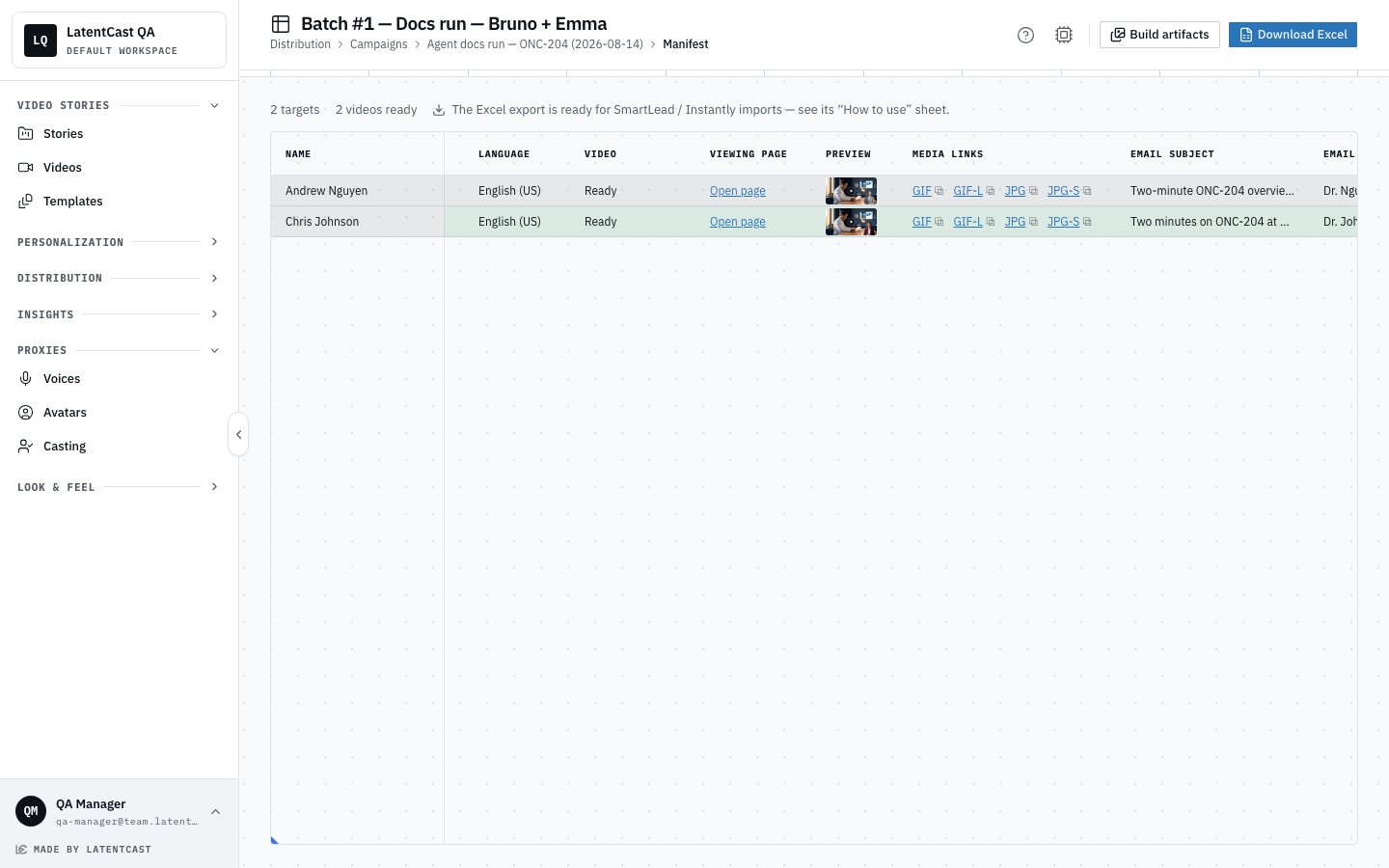
The manifest is the batch's output sheet: one row per person, holding
everything you need to reach them. If the recipient list was the input, this is the counterpart.
## What a row holds
| Group | Contents |
| ------------------ | ---------------------------------------------------------------------------------------------------------------------- |
| **Who** | Their name, company and presenter |
| **Video and page** | Their published video, and the link to their personal viewing page |
| **Preview media** | An animated image sized for strict email clients, a richer one for channels that allow it, and two still preview cards |
| **Outreach copy** | A subject line, an email opener, and a message per channel you selected |
 The preview images are built to look like a video, play button included, so that clicking one takes
the recipient to their page rather than trying to play in the inbox. They start from the campaign's
frame anchor, or from the personal moments if you did not set one.
## The copy is a draft
Every piece of outreach copy is written for that specific person and signed by their own presenter,
and every cell is editable. Click one and rewrite it. Your override survives a rebuild.
Read a few before you send. The copy is good, and it is still worth your eyes on the ones going to
people who matter.
## Getting it into your sending tool
**LatentCast produces. It does not send.** Nothing reaches a recipient until you send it, from your
own email or messaging tool. Ticking channels in the campaign wizard chooses which copy gets written,
nothing more.
**Export** downloads the manifest as a spreadsheet shaped for the common sequencing tools, with
their column-name limits respected and every link in plain text so it can be dropped into a merge
field. The intended flow is straightforward:
1. Export the manifest.
2. Import it into your sending tool as a list.
3. Build your sequence so it references each person's page link, preview image and copy.
4. Send.
Every media link is permanent, so a sequence you load today still works next month.
## Rebuilding
Assets are built automatically as the last phase of a run, and a batch is not complete until they
are. **Build artifacts** rebuilds them by hand, which you would do after changing the frame anchor.
Rebuilt media keeps the same links.
## Before you send
* The batch shows complete, with nothing left to retry.
* You opened two or three viewing pages from the manifest and watched them.
* You read a handful of the outreach messages and would put your name to them.
* The preview images look like something you would click.
## Next
The page each recipient lands on, and how to manage them.
The gate that catches problems before this stage.
The preview images are built to look like a video, play button included, so that clicking one takes
the recipient to their page rather than trying to play in the inbox. They start from the campaign's
frame anchor, or from the personal moments if you did not set one.
## The copy is a draft
Every piece of outreach copy is written for that specific person and signed by their own presenter,
and every cell is editable. Click one and rewrite it. Your override survives a rebuild.
Read a few before you send. The copy is good, and it is still worth your eyes on the ones going to
people who matter.
## Getting it into your sending tool
**LatentCast produces. It does not send.** Nothing reaches a recipient until you send it, from your
own email or messaging tool. Ticking channels in the campaign wizard chooses which copy gets written,
nothing more.
**Export** downloads the manifest as a spreadsheet shaped for the common sequencing tools, with
their column-name limits respected and every link in plain text so it can be dropped into a merge
field. The intended flow is straightforward:
1. Export the manifest.
2. Import it into your sending tool as a list.
3. Build your sequence so it references each person's page link, preview image and copy.
4. Send.
Every media link is permanent, so a sequence you load today still works next month.
## Rebuilding
Assets are built automatically as the last phase of a run, and a batch is not complete until they
are. **Build artifacts** rebuilds them by hand, which you would do after changing the frame anchor.
Rebuilt media keeps the same links.
## Before you send
* The batch shows complete, with nothing left to retry.
* You opened two or three viewing pages from the manifest and watched them.
* You read a handful of the outreach messages and would put your name to them.
* The preview images look like something you would click.
## Next
The page each recipient lands on, and how to manage them.
The gate that catches problems before this stage.